ERP User Manual
Transfer
The Transfer Module allows users to manage the movement of products between warehouses within the organization. It supports tracking of product cost, tax, and shipping charges involved in internal stock transfers. This ensures that stock quantities are accurately maintained across different locations.
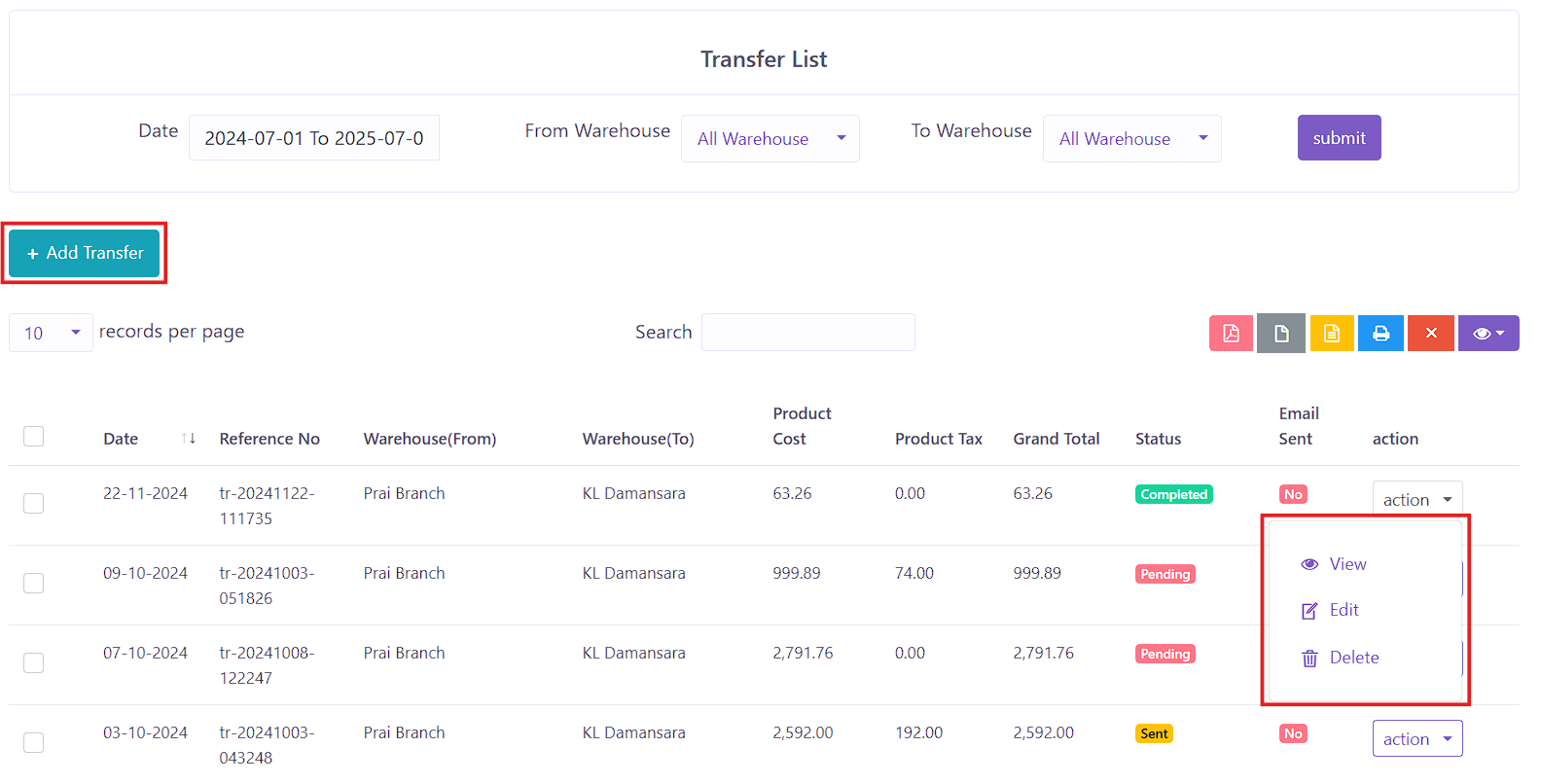 Figure X: Transfer List
Key Columns in the Transfer Index Table:
- Date – Transfer creation date.
- Reference No – Unique transfer identifier.
- From Warehouse – Source warehouse for the transfer.
- To Warehouse – Destination warehouse.
- Product Cost – Total base cost of transferred products.
- Product Tax – Total tax applicable to the products.
- Grand Total – Final total including cost and tax.
- Status – Indicates transfer status: Complete, Pending, or Sent.
- Email Sent – Whether an email notification has been sent (Yes/No).
- Action – Options to View, Edit, or Delete the transfer record.
Add Transfer
To create a new stock transfer between warehouses, users can click the Add Transfer button. The form consists of two sections for capturing all necessary data.
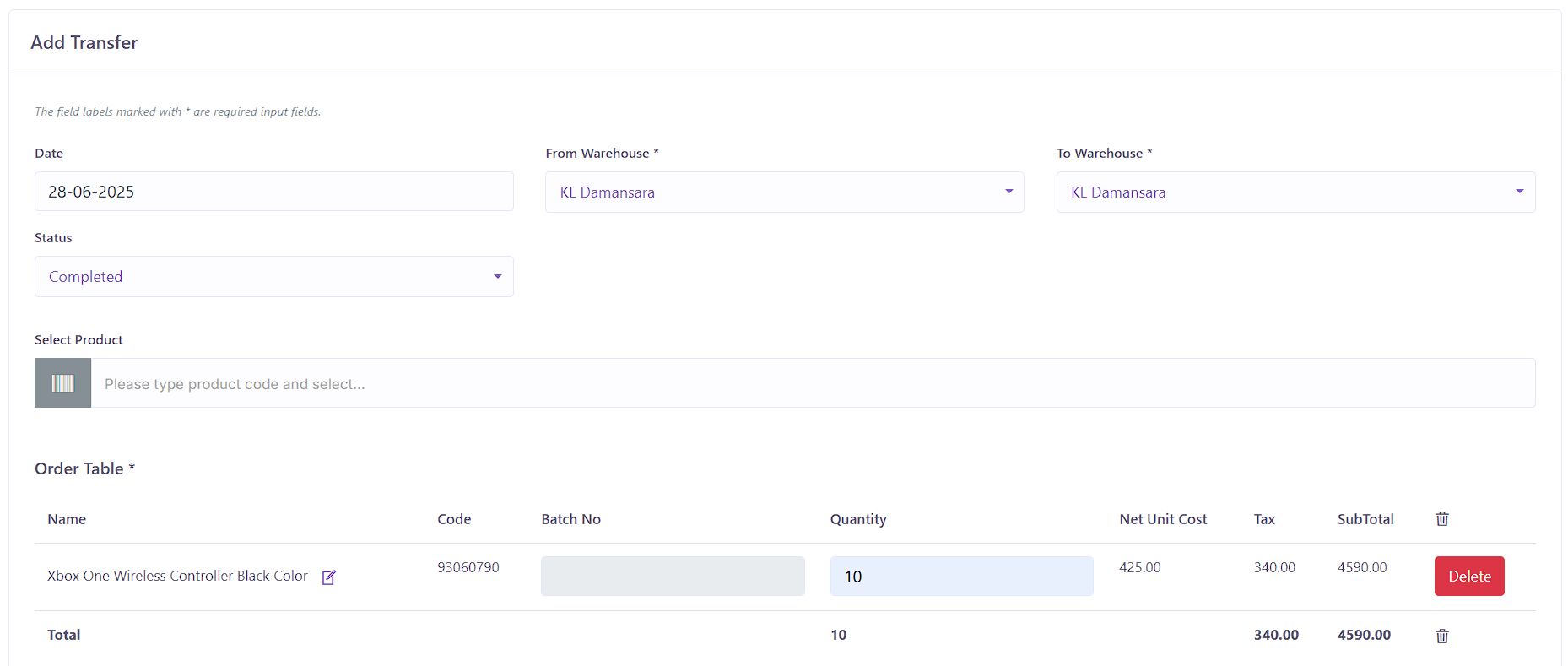 Figure X: Add Transfer - Product Details
Form Section 1 – Transfer Details and Product Selection
- Date – Select the transfer date.
- From Warehouse – Choose the warehouse where stock is moving from.
- To Warehouse – Choose the destination warehouse.
- Status – Choose between: Complete, Pending, Sent.
- Select Product – Search by product name or code.
Once products are selected, they appear in the order table containing:
- Product Name & Code – Auto-filled on selection.
- Batch Number – Optional batch tracking.
- Quantity – Enter the quantity to be transferred.
- Net Unit Cost – Auto-calculated cost per unit.
- Tax – Calculated tax for each product.
- Subtotal – Total per row.
- Delete Button – Remove product from transfer.
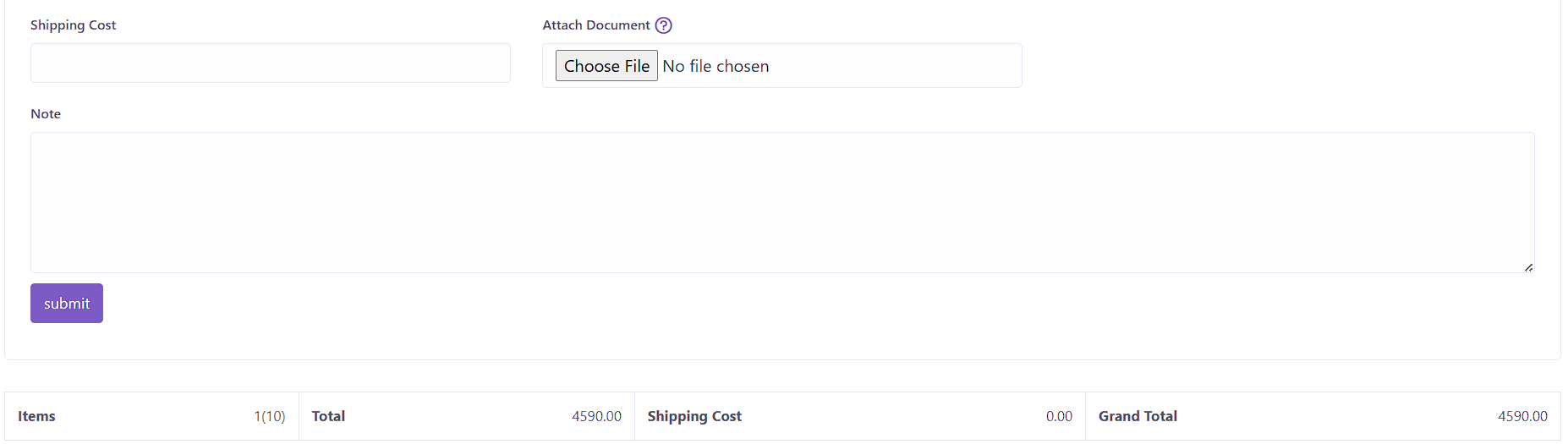 Figure X: Add Transfer - Additional Info & Summary
Form Section 2 – Shipping and Notes
- Shipping Cost – Optional field to record shipping fees.
- Attach Document – Upload any supporting files (PDF, image, etc.).
- Note – Additional remarks regarding the transfer.
At the bottom of the form, a dynamic summary section shows:
- Items – Total number of items in the transfer.
- Total – Sum of product costs.
- Tax – Combined tax for all items.
- Shipping Cost
- Grand Total
Once all fields are completed, click the Submit button to finalize the transfer.